This guide provides a detailed overview of each feature within Neo App, helping you navigate, manage, and maximize every aspect of your digital banking and investment experience. From secure account access to trading, investing, and insurance management, this guide will walk you through each section step by step.
The registration page allows new users to create an account on Neo App through a simple five-step process. This step-by-step registration ensures that all required personal and contact information is accurately collected to set up a secure financial profile.
At the beginning of the process, choose their account type, with two options available. Once the account type is selected, users proceed to fill in their basic personal details, including first and last name, personal identification number, email address, and phone number.
Each field must be completed carefully, as this information is used for identity verification and account security. The progress bar at the top of the form shows users how far along they are in the registration process.
Before proceeding, users must agree to the app’s Terms and Conditions and Privacy Policy, ensuring they understand how their data is managed and protected.
For users who already have an account, a convenient link is provided to redirect them to the login page.
The second step of the registration process focuses on collecting the user’s residential information, which is a crucial part of verifying identity and securing the account. This step ensures compliance with financial regulations and helps protect users from unauthorized access or fraudulent activity.
Users begin by selecting their country of residence from the drop-down list, followed by entering their city, street address, and postal code exactly as shown on official identification documents. Providing accurate and up-to-date details at this stage is essential to avoid delays or issues during the verification process.
The layout of the form is clear and intuitive, guiding users through each field with ease. A progress indicator at the top of the screen helps users track their advancement through the registration steps, ensuring transparency and a smooth onboarding experience.
Once all information has been entered and reviewed for accuracy, users can click Next to proceed to the following step or use the Back button to review and update any previously entered details before continuing.
The third step of the registration process gathers important details about the user’s financial background, which helps the app build a suitable investment profile and ensure compliance with financial regulations. This information is essential for offering appropriate services and maintaining responsible trading practices.
Users start by selecting their monthly net income range from the provided list, with the option to choose “Rather not say” if they prefer not to disclose this information. They then specify the amount they plan to invest, selecting from several ranges that best match their financial capacity and goals.
This step also asks users to indicate whether they have previous investment experience, allowing the app to tailor educational resources, risk notifications, and recommendations to their level of expertise. The layout of the form is simple and user-friendly, ensuring that each question is easy to understand and complete.
Once all the information has been entered accurately, users can click Next to move forward to the next step or use the Back button to review and update earlier details before proceeding.
The fourth step of registration focuses on creating the security credentials required to access the user’s account safely. This ensures that personal data and financial information remain protected at all times while providing quick and secure access to the app’s features.
Users begin by entering a new password that meets the app's security requirements, then confirm it in the Repeat Password field to avoid mistakes. Each password field includes a visibility toggle, allowing users to double-check their input before continuing.
After setting the password, users must create a PIN code, which will be used for quick identity verification during login or when authorizing important actions, such as transactions or withdrawals. The process is simple and clearly guided to ensure every security step is completed correctly.
When all fields have been filled in and verified, users can click Next to continue to the final step of registration or use the Back button to review or modify previous information if needed. Taking the time to create strong and unique credentials at this stage helps ensure maximum protection.
The fifth and final step of the registration process focuses on account verification and activation, ensuring the user’s information is securely validated before accessing the app. This step is designed to confirm ownership of contact details and complete the setup of the new trading account.
To begin, users click Send OTP to receive a one-time password (OTP) on their registered phone number. The code must be entered into the provided field to verify the number successfully. Afterward, users are asked to enter a Security Code, which adds another layer of protection to their account and ensures secure access in future sessions.
Before completing the registration, users must confirm that they are over 18 years old and agree to the Terms and Conditions by checking the corresponding boxes. The clear layout and progress bar make it easy to follow each step with confidence.Once all information has been verified, users can click Register to finalize their account creation. After successful confirmation, they can log in and begin exploring the app's financial tools, trading options, and account features securely, starting their journey toward managing and growing their investments with ease.
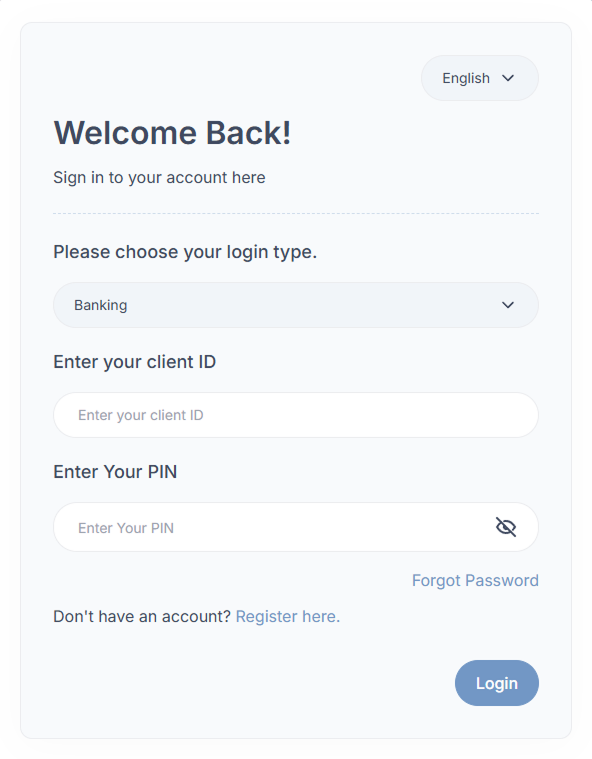
The login page is the secure entry point to the Neo App, allowing users to access their personal or business accounts safely. It is designed with simplicity and protection in mind to ensure smooth and secure account access.
At the top of the login form, users can select their preferred language from the dropdown menu. They then choose their login type, with two available options to access different account categories.
After selecting the login type, users enter their Client ID and PIN in the corresponding fields. The PIN input includes a visibility toggle to show or hide the characters entered for added privacy.
If a user forgets their PIN or has trouble accessing their account, the Forgot Password link provides a secure recovery process. New users who do not yet have an account can select Register here to begin the registration process.
Once the required details are entered, clicking the Login button grants access to the personalized Neo App dashboard, where users can manage their banking, trading, investment, and insurance activities.
After logging in, users access the Neo App Dashboard, the central hub for managing all financial activities. It offers a clear summary of balances, transactions, deposits, withdrawals, and global insights.
At the top, the Total Balance displays the combined amount from all connected accounts, along with Total Deposits, Total Spending, and Total Profits, supported by simple performance charts.
The Deposits and Withdrawals section includes an interactive graph that tracks monthly financial activity and can be filtered by time period using the “Sort By” menu.
On the right, the My Wallet panel lets users view linked cards, check balances, and quickly add funds using the Quick Add feature and Add More Balance button.
Below, the Latest Transactions table lists recent activity with IDs, types, amounts, and timestamps, providing full transparency and real-time tracking.
Finally, the Live Customers Worldwide map highlights active regions, showing Neo Finance’s global reach and user community.
Navigation options on the left grant quick access to all main sections, including Accounts, Trading, Investing, and Support.
The Account Details page provides users with essential information related to their Neo App banking and trading accounts. It serves as a central place to review and manage account identifiers and access credentials.
On the left side, under Account Information, users can view their registered personal details, including First Name, Last Name, Account Number, and SWIFT/BIC code. This section ensures users have immediate access to key account information often required for transactions or verification purposes. A link labeled Manage My Profile allows users to update their personal data if necessary.
On the right side, the Trading Platform Account Info panel displays the user’s Platform Account Number, which is used for trading or investment operations within the system. A direct link, Manage Access and Password to my app, provides quick access to update login credentials or modify app permissions.
A Back to Home button is located at the top right corner, allowing users to return to the main dashboard easily.
This screen is designed for clarity and quick access, giving users a simple and secure way to verify and manage their account details.
The Transaction Overview page provides users with a complete record of all financial activity performed within the Neo App. It allows users to track, review, and manage every transaction linked to their account with full transparency and accuracy.
At the top of the page, users can apply filters to refine their transaction history. The Filter By dropdown, along with Start Date and End Date selectors, helps narrow down specific time frames or transaction types. A Search bar is also available to quickly locate a transaction by keyword or ID.
The transaction table displays key details for each record, including Transaction ID, Invoice Number, Type, Amount, and Status. Types may include deposits, withdrawals, credits, or other financial movements. Each entry is timestamped, allowing users to verify the exact date and time of activity.
On the right-hand side, the Status column shows the outcome of each transaction, such as “Successful.” Users can also select multiple entries using checkboxes to manage or review them in bulk.
Above the table, users have the option to click Reset Filters to clear all applied filters or select Download Report to export transaction data for record-keeping or auditing purposes.
A Back to Home button is positioned in the top-right corner, enabling users to return to the main dashboard easily.
The Deposit Page allows users to add funds to their Neo App account through multiple secure payment methods, offering flexibility and transparency in managing deposits.
At the top, users can select their preferred deposit option, including credit or debit card, bank transfer, bank app payment, or crypto payment. Each method is processed securely and tailored to different user preferences and regional systems.
Below the payment options, the Recent Deposits section summarizes completed transactions, showing key details such as method, amount, and status. If no deposits are available, the message “No Deposit Found” appears. A search bar and sorting tool help users quickly locate past deposits, while the Back to Home button allows easy navigation to the dashboard.
This page provides a fast, secure, and transparent way for users to fund their accounts and track deposit activity efficiently.
The Make a Transfer page allows users to send funds securely from their Neo App account to another bank or beneficiary, supporting both local and international payments.
At the top, users can view their available balance and complete the Transfer Details form, entering information such as the recipient’s account number, name, bank details, IBAN or SWIFT code, reference, date, amount, and selected currency. Once all fields are filled, clicking Create Transfer Request submits the transaction for secure verification and processing.
Below the form, the Recent Transfer Requests section lists past transfers with details like invoice number, payment method, amount, and status, helping users track whether each transaction is pending, approved, or canceled. The Back to Home button at the top allows quick navigation to the main dashboard.
This page offers a simple, transparent, and secure way to manage outgoing transfers within the Neo App, giving users full visibility and control over their payment history.
The Trading Platform page gives users a clear overview of their trading activity, market performance, and real-time financial data — all in one place.
At the top, users can view their Login ID, Trading Balance, and key metrics such as Credit, Equity, Free Margin, Margin Level, and Leverage, helping assess risk and account performance instantly.
The main section displays live market data for major global assets like Apple, Tesla, and Amazon, alongside an interactive TradingView chart for visual analysis across multiple timeframes. Below, an Exchange Rates table lists current currency values for major forex pairs, keeping traders updated on market changes.
Additional instruments, including stocks, commodities, and cryptocurrencies, appear at the bottom with percentage changes and trends.
Designed for clarity and precision, the Trading Platform gives users the tools to analyze markets and make informed decisions efficiently within Neo Platform.
These sections provide access to advanced financial tools and services available to verified or premium Neo App clients. They are designed for users who want to expand beyond everyday banking and engage in broader financial management.
The Investing section allows eligible users to participate in curated investment opportunities. It provides access to verified portfolios, client projects, and market-based investments, helping users grow their wealth through transparent, data-driven options.
The Projects section is dedicated to funding and managing real or digital ventures. Users can explore ongoing projects, contribute to community-driven initiatives, and track the progress and financial performance of investments directly through the app.
The Insurance section offers a streamlined way to apply for or manage coverage plans. Depending on eligibility, users can access personal, business, or investment-related insurance, submit documents, track claim status, and manage renewals in one secure space.
Access to these modules may depend on account type, verification status, or region, ensuring compliance with financial and legal requirements.
The Support section connects users with the Neo App customer assistance team. It provides quick access to FAQs, live chat, and contact forms for reporting issues or requesting help with transactions, verification, or account management. The goal is to ensure that every client receives reliable and timely assistance.
The Documents page serves as a secure space for managing uploaded files related to identity verification (KYC), investment agreements, and insurance policies. Users can upload, view, and track document approval progress while maintaining full control of their stored data.
The Settings section allows users to customize and secure their Neo App account. Here, users can update personal details, manage account data, adjust payment preferences, and modify security options such as passwords, PINs, and verification methods. Notification preferences can also be set to control alerts for transactions, trading activity, and system updates.
Commission-smart trading, powerful tools, and transparent pricing.
Important Information
By accessing or using this application, you acknowledge and agree to be bound by the applicable Terms of Use and Privacy Policy.
Neo Finance employs advanced encryption, secure authentication, and multi-layered safeguards to protect customer information and transactions. While robust measures are in place, you are responsible for maintaining the confidentiality of your access credentials and ensuring that only authorized persons use your account.
All services, including deposits, transfers, investments, trading, insurance, and related features, are provided in accordance with regulatory standards and may be modified, suspended, or discontinued at any time.
Your use of the services constitutes acknowledgment and acceptance of these terms, as amended from time to time.